

 HANDS ON SharePoint
 HANDS ON Teams
 HANDS ON Lists
 HANDS ON tek
 M365 Admin
Using Microsoft Lists Playlists and Clipchamp to Manage Video Content in Microsoft 365
Clipchamp has become the place where video work in Microsoft 365 converges. Meeting recordings, screen captures, internal explainers, and trimmed clips all surface through the same experience. For many users, Clipchamp is no longer perceived as an editing tool, but as the interface through which organizational video is watched and shared.
As video production inside organizations increases, recordings end up spread across SharePoint sites, document libraries, and personal drives, with little context beyond a filename and a timestamp.
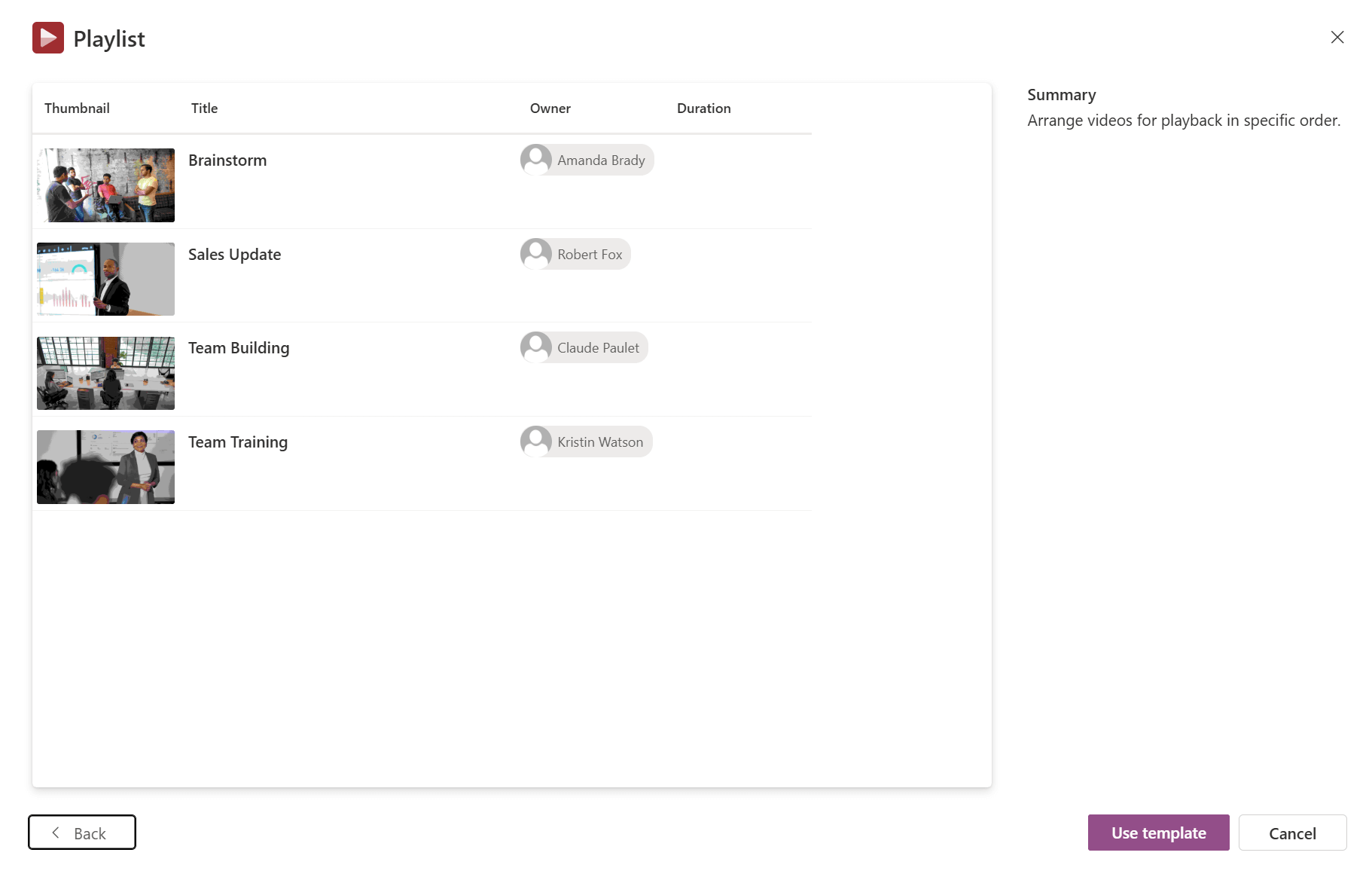
Microsoft Lists includes a playlist template designed to address this gap, although it is rarely discussed and often misunderstood. Part of the confusion comes from how the template is presented.

When a playlist is created from Microsoft Lists, the preview shows a standard tabular list. Columns, rows, and a familiar grid. Nothing in that preview communicates that the list will render as a video‑first experience, with a player and a curated sequence of videos. Many users never get past that first impression.
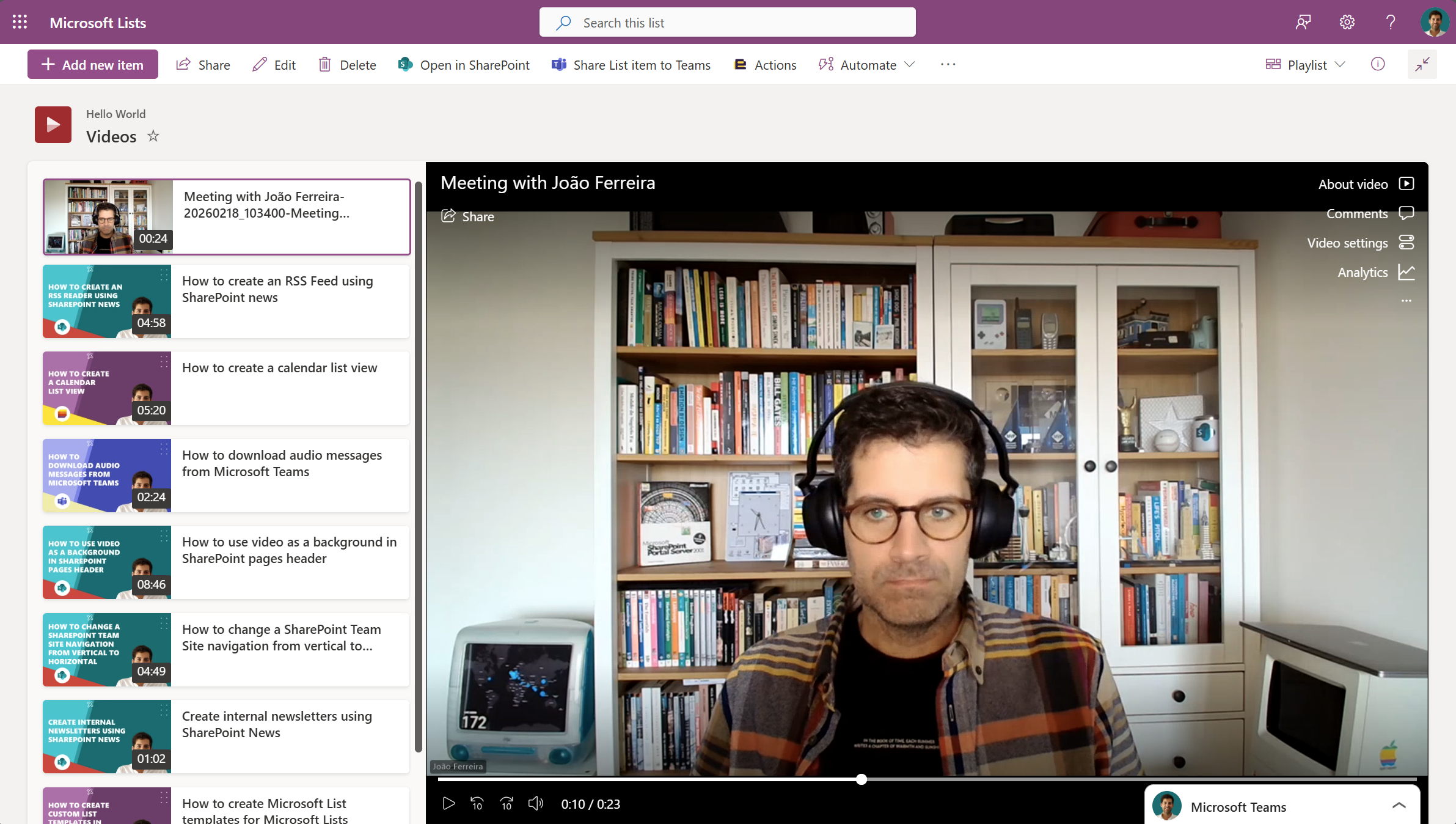
Once created, however, the list switches to a dedicated playlist view. The selected video plays prominently, while the remaining videos are displayed underneath in a defined order. The list stops behaving like a list and starts behaving like a playlist. It becomes something to watch, not scan.
Playlists answer the question of consumption. They provide sequence, context, and intent, particularly for onboarding material, training content, product walkthroughs, or recurring internal updates.
Creating a playlist from Microsoft Lists or SharePoint
A playlist can be created directly from Microsoft Lists or from the “New > List” option on a SharePoint site. Selecting the Playlist template creates a list backed by a specialized playlist view. At this stage, you define where the playlist lives, which is important. Storing playlists in SharePoint sites rather than personal storage makes them easier to share, embed, and manage over time.
Once created, the playlist behaves like a list underneath. Videos are added as items, metadata can be extended, and permissions follow the existing SharePoint model. The difference is purely in how the content is rendered and consumed.
Creating a playlist from Clipchamp
Playlists can also be created directly from Clipchamp. From the Clipchamp start page or while watching a video, it is possible to create a new playlist and choose where it should be stored. This makes playlist creation part of the natural video workflow rather than a separate organizational task.
Adding videos from Clipchamp to a playlist
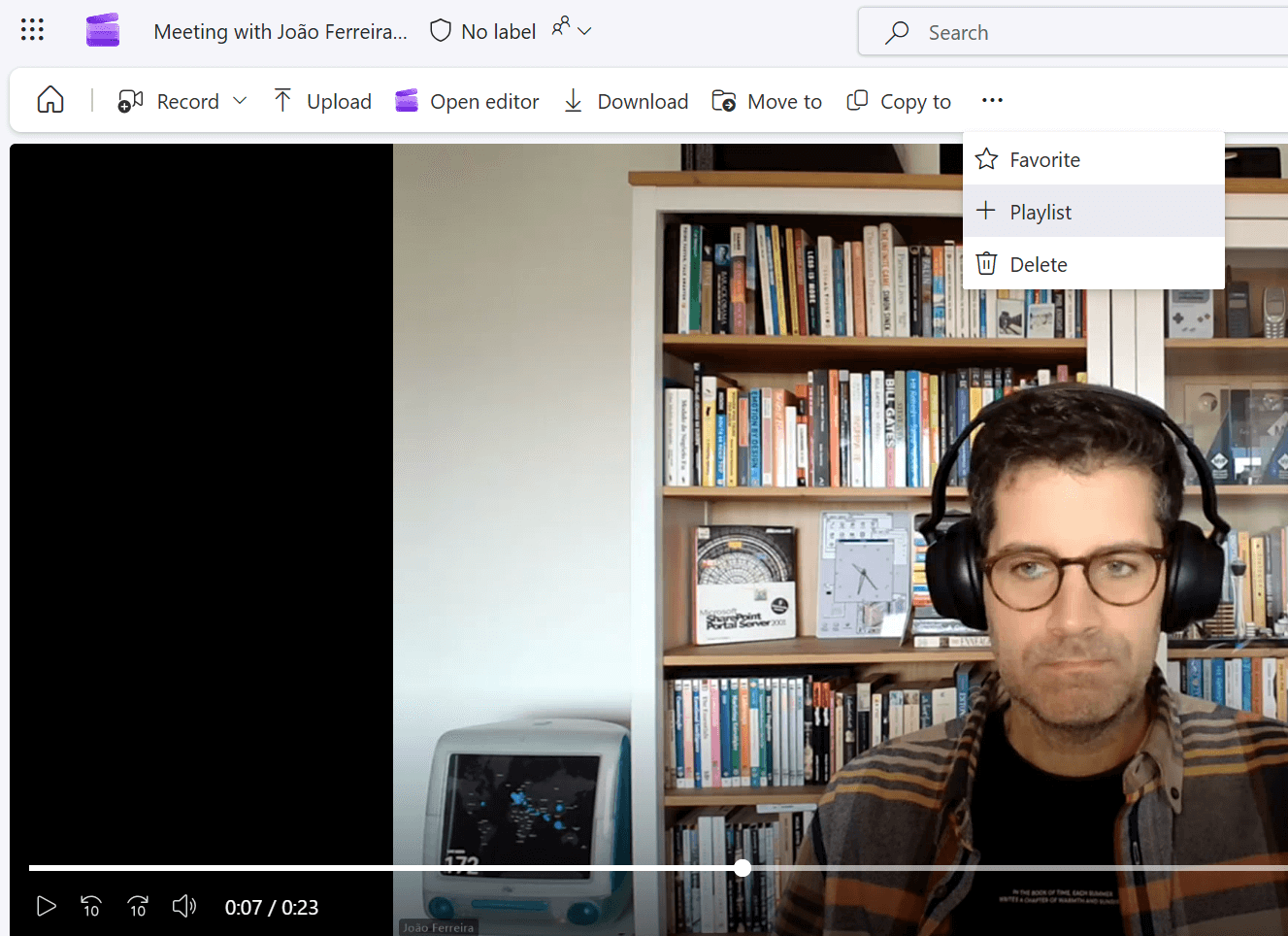
Videos can be added to a playlist directly from the Clipchamp video player. While watching a video, the option to add it to a playlist is available without leaving the player. Existing playlists can be selected, or a new one can be created at that moment.
Behind the scenes, nothing is duplicated. The playlist does not store the video itself; it references it. The file remains in SharePoint or OneDrive, and permissions are still managed at the video level. The playlist provides structure without creating another copy of the content.
Because playlists are built on Microsoft Lists, they can also be embedded directly into SharePoint pages using the List web part. This turns a standard page into a lightweight video hub, without custom development or additional configuration.
Final Thoughts
The Microsoft Lists playlist template is not a new concept, nor is it technically complex. What it offers is alignment. It connects the way video is produced and consumed in Clipchamp with the structure and governance of SharePoint.
For organizations already producing large volumes of internal video, playlists offer a simple way to add order without introducing new tools or workflows. Used intentionally, they become less about lists and more about how video knowledge is actually consumed inside Microsoft 365.






No comments yet