

 HANDS ON SharePoint
 HANDS ON Teams
 HANDS ON Lists
 HANDS ON tek
 M365 Admin
A New “Quick Steps” Column in Microsoft Lists: A Simpler Way to Automate Actions
These days, while creating a new list from scratch, I came across a new column type completely by surprise, just sitting there, quietly waiting to be discovered. One of those things Microsoft slips into the product without any communication whatsoever. And honestly? It’s brilliant!
This new Quick Steps column instantly adds action buttons directly into your list items, removing all the configuration overhead and making automation feel truly native.

Until now, if you wanted one‑click actions inside a column to automate the execution of a Power Automate flow you either:
- configured Quick Steps manually through the Automate menu, or
- built a custom button column using JSON formatting, which required understanding schema, syntax, and edge cases.
This new column type removes all of that complexity and brings mor functionality that is always just one click away directly from the list item.
What the Quick Steps Column Does
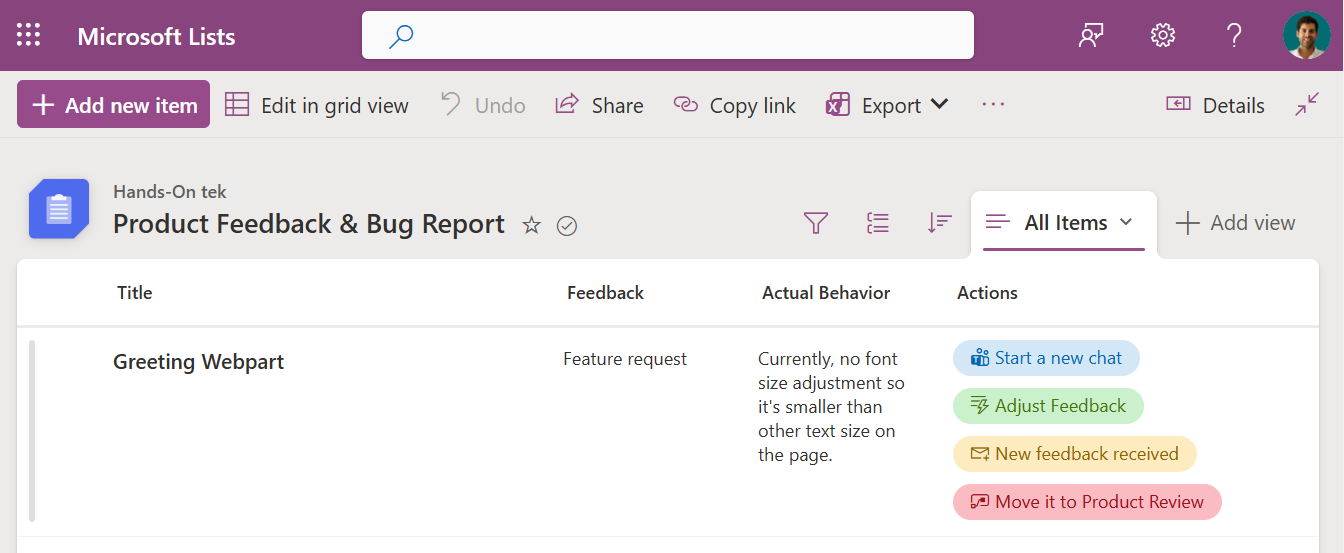
When you add the Quick Steps column to a list, Microsoft automatically injects a set of predefined, context‑aware buttons directly beside each item. No formatting, no JSON, no configuration pages. The actions appear instantly and behave the same way as the “classic” Quick Steps you may already know.
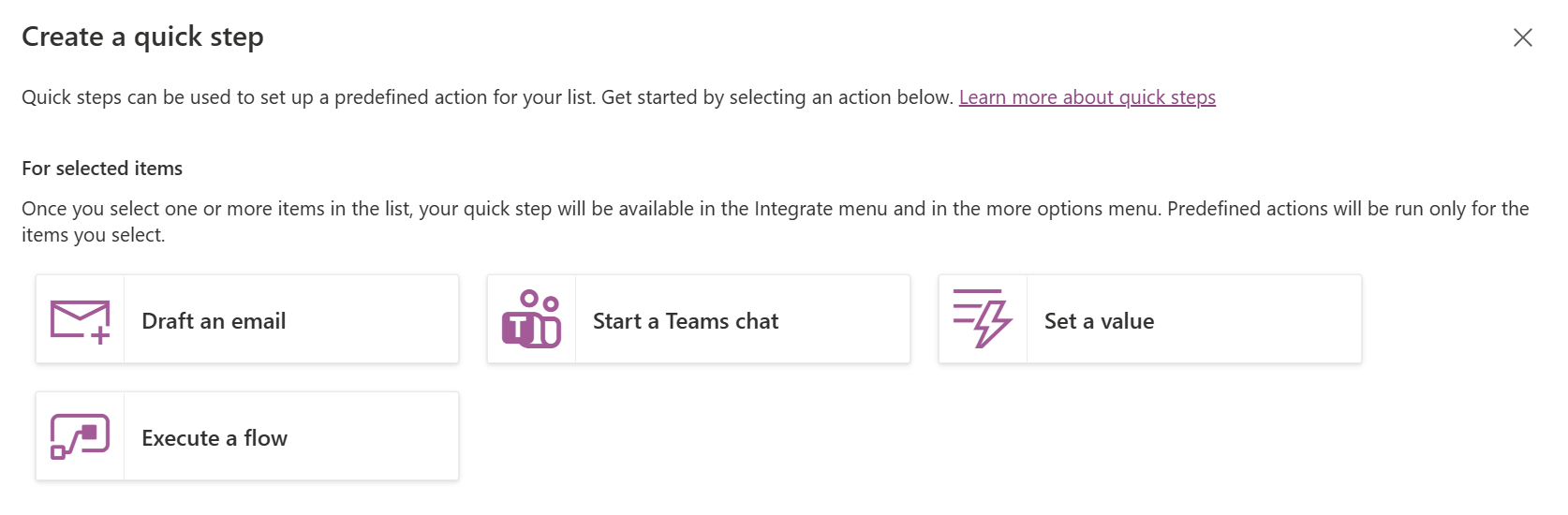
Available Quick Step Actions in Lists
The Quick Steps column exposes the core actions that users actually need day‑to‑day. At the moment, the actions that show up are the same ones available in the Automate menu:
Draft an Email
Creates a new Outlook draft pre‑filled with the link to the item perfect for follow‑ups, approvals or stakeholder updates.
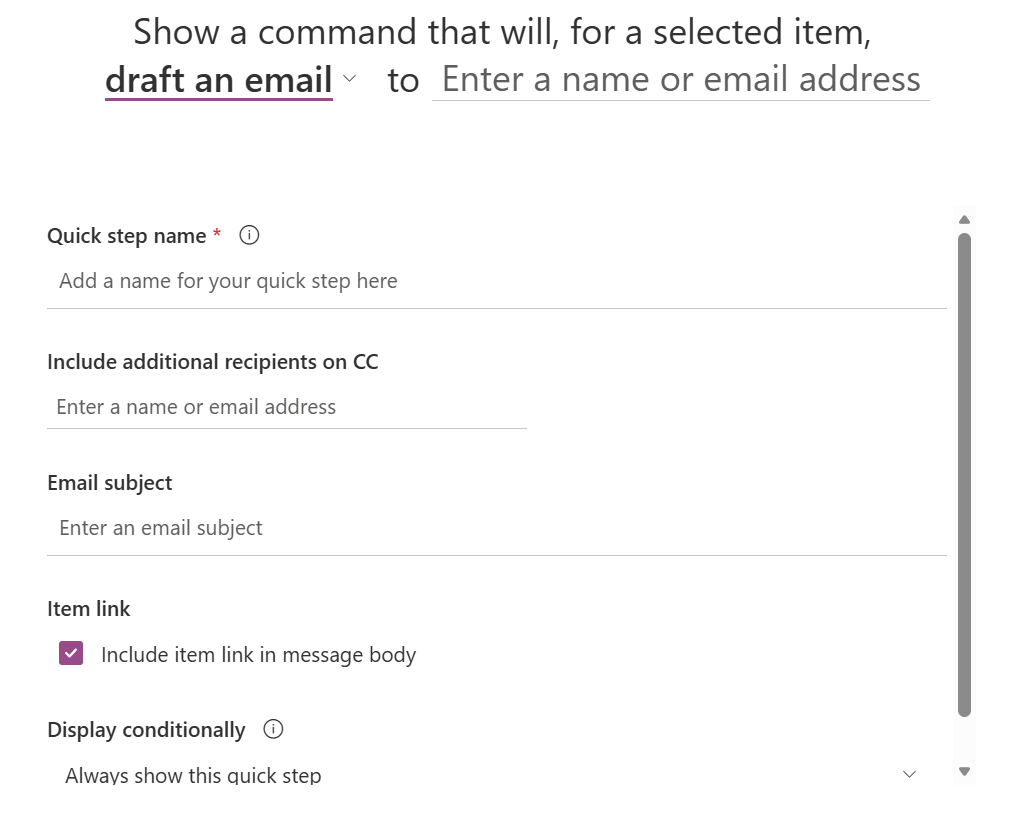
Start a Teams Chat
Opens a new Teams chat with one or more people from the list item. If the item contains people‑type fields, those are automatically suggested.
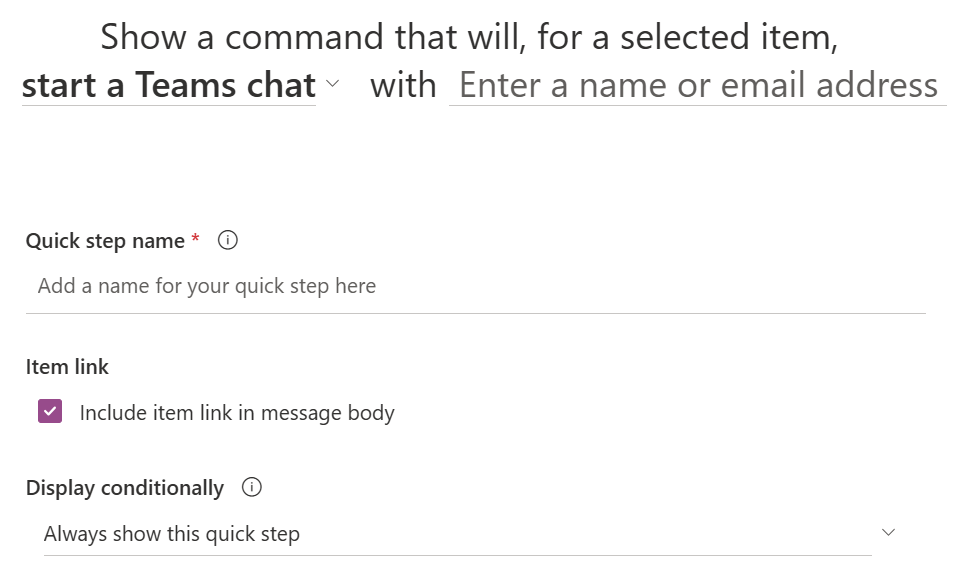
Set a Field Value
The fastest way to update a status, priority, category, or any single field with one click.
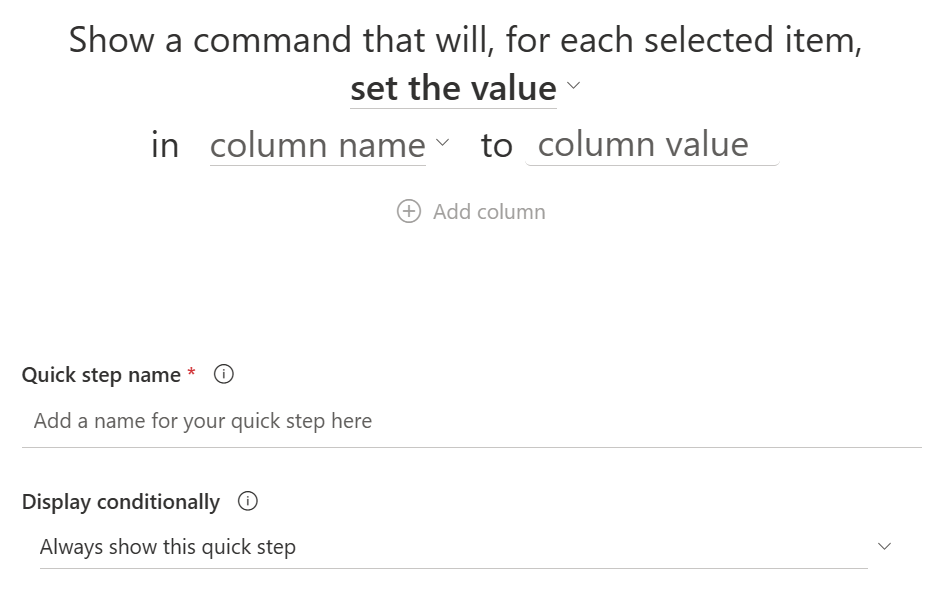
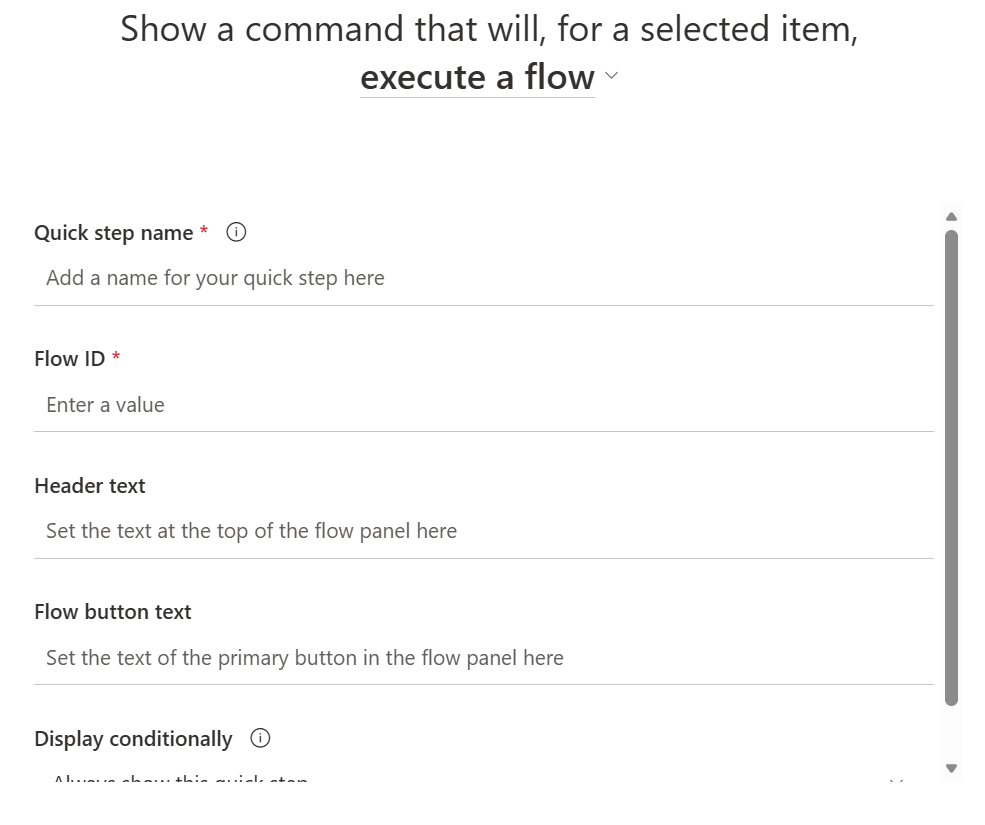
Run a Power Automate Flow
Still requires you to provide the Flow ID to trigger the execution, but it simply the process of adding it to the item so much that I almost forgot that we used to need JSON formatting for this.
How Quick Steps Columns Are Created
You create one the same way you create any other column:
- Open your list
- Select Add column
- Choose Quick Steps
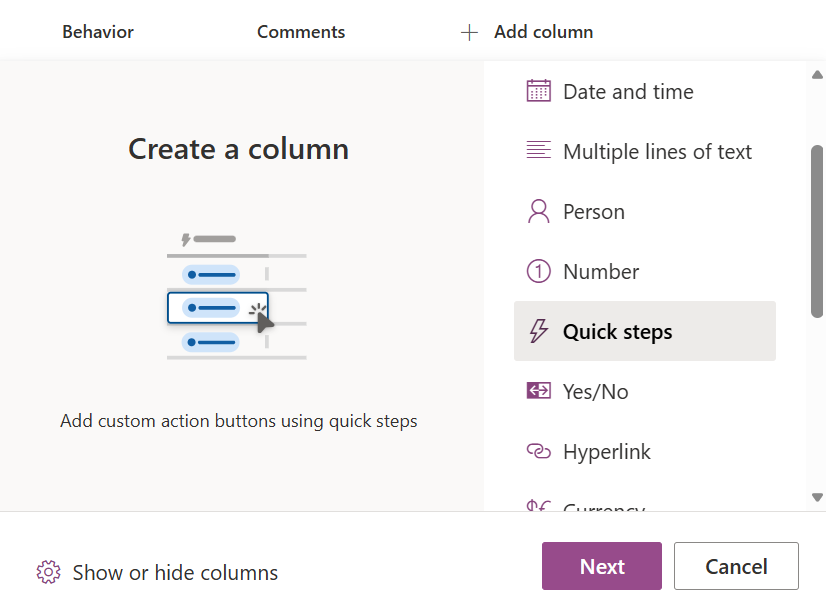
- Provide a name for the Quick Steps column and start adding your actions
- Each action you configure adds a button to the column in the item, these buttons inherit the icon automatically and you can manually set the color and the text of each one
You can configure up to 15 quick actions and while configuring them choose to display the buttons conditionally based on the data that exists in the list.
Final Thoughts
This new Quick Steps column type is a fantastic usability upgrade for Microsoft Lists. It brings automation closer to the user, removes the need for JSON, and makes Lists feel more modern and capable out‑of‑the‑box.






No comments yet