

 HANDS ON SharePoint
 HANDS ON Teams
 HANDS ON Lists
 HANDS ON tek
 M365 Admin
How to Hide Real‑Time Collaborators in Microsoft Lists and Why It Actually Matters
Microsoft Lists keeps evolving, and one of the most subtle but important changes is the new admin control that allows you to hide real‑time collaborators at the site collection level.
If you missed the announcement, it’s now possible for admins to disable the little avatars that show who else is currently viewing or editing a list. This isn’t just another option buried somewhere in PowerShell. It addresses real privacy concerns and can make a big difference in how teams work day to day.

Why Would Anyone Hide Real‑Time Collaborators?
At first glance, the presence indicators in Lists feel harmless. They show who else is looking at the list and even which item they’re editing. But in real organizations, visibility isn’t always comfortable or appropriate.
Picture a procurement team managing a list of suppliers that are under evaluation.The list includes:
- Supplier scoring
- Notes from internal reviewers
- Comments about negotiation strategy
- Status transitions like “Under Review”, “Pending Approval”, “Rejected”
Now imagine multiple teams use this same list: procurement, finance, operations, and maybe even some external consultants.
Without the new control, everyone can see who is inside the list at any moment and which item they’re editing. That means:
- Finance sees that procurement is reviewing Supplier X
- Procurement sees that operations is editing a specific negotiation note
- A consultant sees internal staff browsing evaluation items
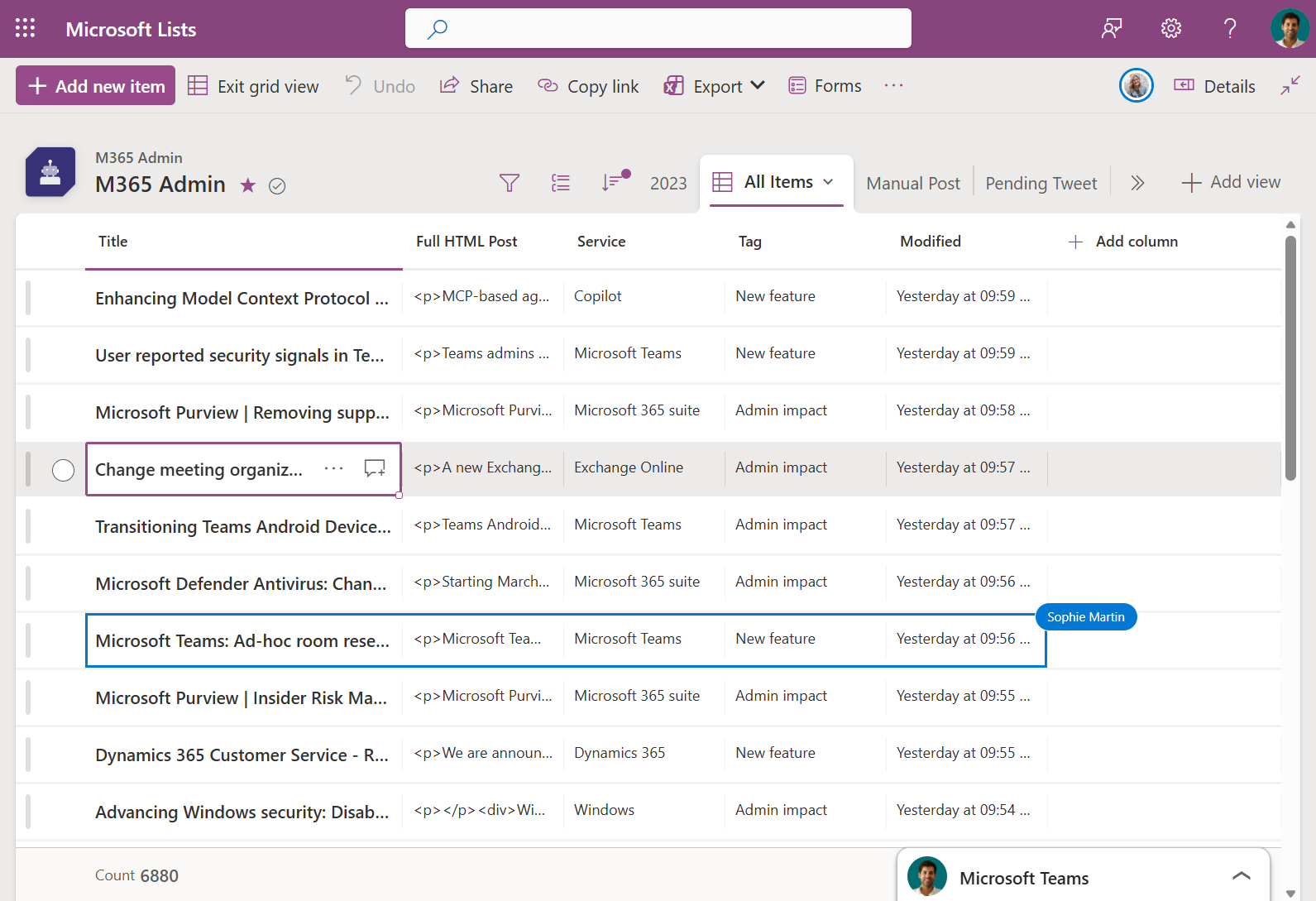
Even though all these users have legitimate access, showing presence can reveal internal priorities, sequences of work, or even strategic decisions earlier than intended.
By hiding real‑time collaborators, you remove unnecessary noise and give each group space to work privately.
The list still supports full co‑authoring. You can still work together. You just don’t have to work under the spotlight. This is where the new control makes sense.
How to Configure It (Admin Only)
This setting is not available in the UI. You need SharePoint Online Management Shell and the right permissions (SharePoint Admin or Global Admin).
The sequence of commands is simple:
Connect-SPOService -Url "<SharePointAdminURL>"
Set-SPOSite -Identity "<SiteCollectionURL>" -HidePeopleWhoHaveListsOpen $true

Setting it to $true hides all real‑time collaborator indicators for every list in that site collection. Setting it back to $false restores them.
The change takes effect immediately and applies to:
- Presence next to the Filtering/Grouping buttons
- Presence at the item level
- Indicators showing which field someone is editing
As a reminder, visibility is ON by default.
When Should You Enable This?
You should consider using it when:
- Lists contain sensitive or confidential business data
- Many departments collaborate on the same lists
- You want to reduce workplace anxiety or pressure created by visibility
- The presence indicators add noise instead of helping
It’s a control that won’t matter for every list, but when it does matter, it matters a lot.
Why This Is Good for End Users, Not Just Admins
End users often don’t think about the admin controls behind the scenes, but they do care about:
- Feeling safe while working
- Not being watched
- Reducing distractions
- Avoiding unintentional information exposure
- Keeping their focus instead of worrying who is “in the room”
This change gives organizations flexibility. Instead of a universal “show everything” or “hide everything,” admins can apply it where it makes sense.
Final Thoughts
Microsoft Lists continues to grow, and this new control it’s not flashy, but it solves a problem that many teams didn’t know how to articulate.
If you manage Lists in your organization, take a moment to review where presence indicators help and where they might create unintended problems.
Sometimes the most important improvements are the quiet ones.






No comments yet